 VoltaML
Windows
Backends
- ✅ Backend available and supported
- ❌ Backend not available yet
- 🚧 Backend is in the development or testing phase
| Backend | Supported |
|---|---|
| PyTorch | ✅ |
| AITemplate | ❌ |
| ONNX | 🚧 |
WARNING
For AITemplate acceleration support, please navigate to WSL2 Installation Guide.
Pre-requisites
Python
- Python 3.10 or higher that PyTorch supports (3.11 is used for testing and development, probably the best option if you do not have any other Python versions installed)
- Installed from official Python website (not from Microsoft Store)
- Added to PATH (done by checking the "Add python.exe to PATH" box during installation) automatically or manually
TIP
You can check if you have Python correctly on path by opening CMD/PowerShell and typing python --version. If you get an error, you will need to add Python to path. Also make sure that you have the correct version of Python installed.
WARNING
If you installed Python from the Microsoft Store, you will need to uninstall it and install it from the official website.
Git
- Installed from official Git website
Installation
1. Create a new folder for the project
You can do this in the Windows File Explorer. Name doesn't matter, so go with something that you like as you will hopefully be using VoltaML for a long time.
2. Download the VoltaML Manager executable
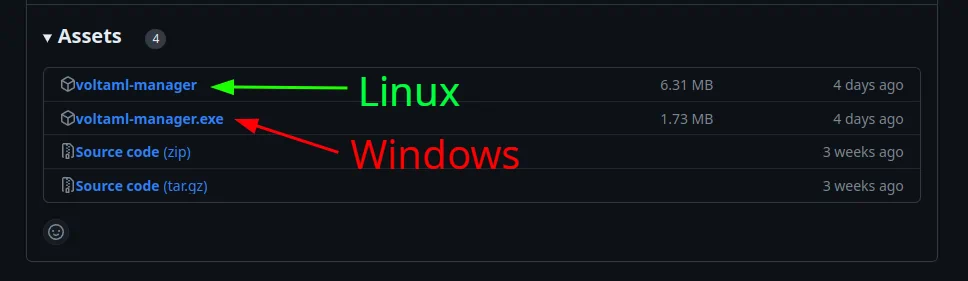
Download the VoltaML Manager executable from the VoltaML Manager releases page
Select the latest release and download voltaml-manger.exe:
3. Put this file into the created folder
Simply drag and drop this executable into the created folder and double click it to run.
4. Install
Select Install, follow the instructions and wait for the installation to finish.
5. Start VoltaML
Select Start and wait for the installation to finish.
6. Open VoltaML
Once all of the above is done, you can open VoltaML by navigating to localhost:5003 in your browser.
Running after installation
To run VoltaML after installation, simply double click the voltaml-manager.exe file and select Start.
You might be prompted to update - if you want to do so, simply select update before starting.